
| Introduction | Orders | Products | Customers | Checkout | History/Reporting |
History
 There is a "History" dropdown menu which lists recently completed orders on the top menu bar.
If you select one of these orders, and click "Go," you will be taken to the details of that order.
If the order you're looking for is not list in the menu, choose the "View More..." option and click
"Go" to get a full list like the one below.
There is a "History" dropdown menu which lists recently completed orders on the top menu bar.
If you select one of these orders, and click "Go," you will be taken to the details of that order.
If the order you're looking for is not list in the menu, choose the "View More..." option and click
"Go" to get a full list like the one below.
Once you choose an order from the dropdown or from the full page listing, you'll be taken to screen like the one below, displaying the details of the order.
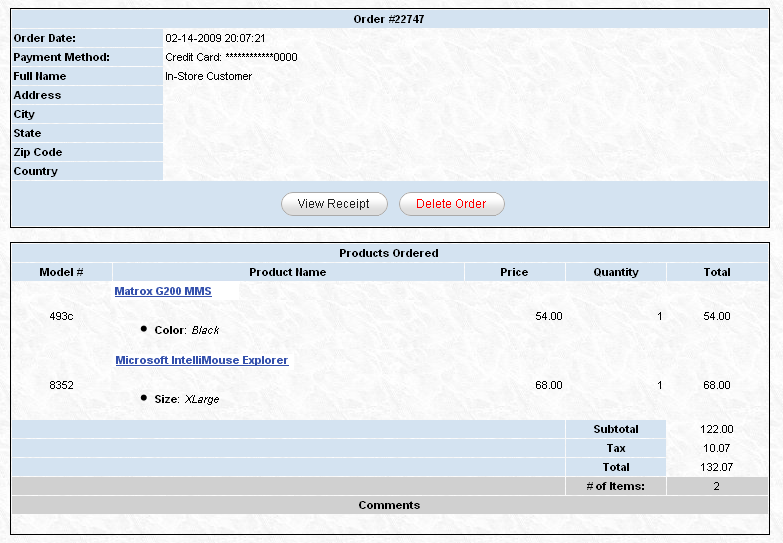
You also have the option of viewing the receipt for the order, or voiding the order. Voiding it set a flag in the database establishing that the order has been cancelled AND WILL return the items back to inventory (incrementing the quantity of the purchased products by the number purchased).
Reporting
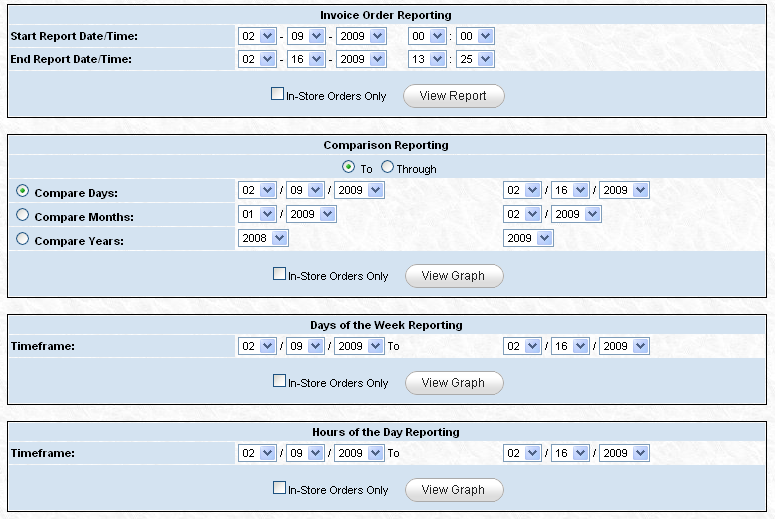
OllaCart Point of Sale comes with 4 major report types, as you can see above. To get to this screen, click on the "History" dropdown menu near the top right of the screen, choose "Order Reporting..." and click "Go."
These reports are fairly self-explanatory. "Invoice Order Reporting" simply shows a list of the orders that occurred between the selected times, and allows you to view the details. "Comparison Reporting" uses tables and graphs to compare a pair, or range, or days, months, or years. "Days of the Week Reporting" uses tables and graphs to compare days of the week. Finally, "Hours of the Day Reporting" uses tables and graphs to compare hours of the day.