| Introduction | Orders | Products | Customers | Checkout | History/Reporting |
Orders
Overview
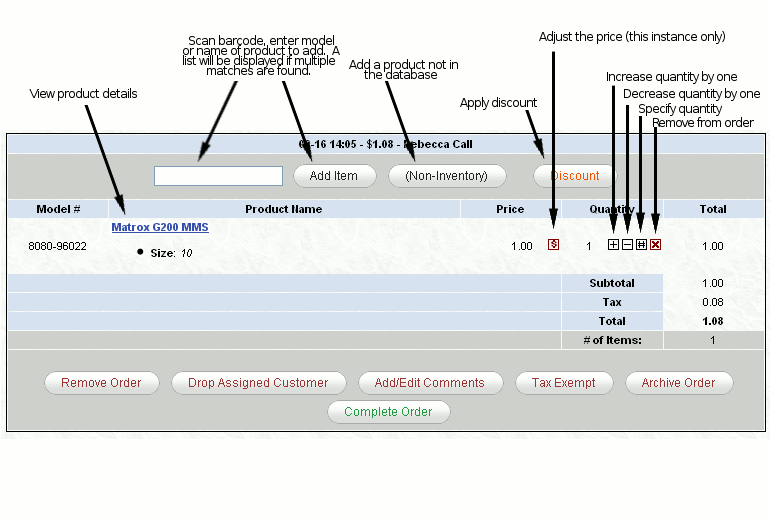
Above if the order screen. Near the top is bar for items to the order. They are matched by model or name, and a list page will be displayed if more than one match is found. There is also a "Non-Inventory" button for adding random items on the fly that are not in the database. See below for more details.
Each item in the order will be listed. You can click on the name for that product's details. If the item added to the order requires an attribute option to be selected (ie. size, color) you will be taken to the product info screen and able to select from a drop down box the attribute option to be assigned. There is a set of button on the right side of each item that will let you adjust the price, increase/decrease/specify quanity, or remove the item from the order.
On the bottom of the table is a set of buttons. Here you can remove the order, clear the assigned customer (if one is assigned), add comments (see below), set the order to be tax exempt, archive the order, or complete the order. Archiving the order temporarily writes it to the database, so that it can be reopened in the future or on another terminal.(Note: Archived order will be accessible even after the computer is rebooted/shutdown. Pending order will be removed when the web browser is exited.)
Non-Inventory Items
The non-inventory function is for products you are selling temporarily that are not in the product database. To add one click the "Non-Inventory" button at the top of the order table. You will be taken to a form like the one below where you can specify the details of the product. Once you're done, click "Add Product to Order" to add the product to the order and return to the order screen.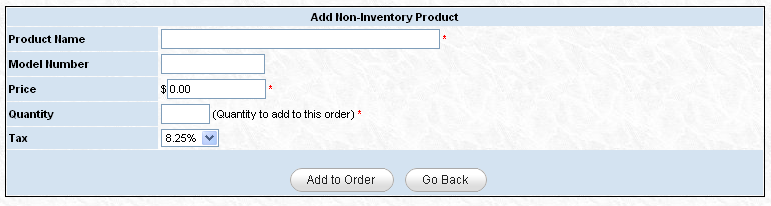
Comments
To add comments to an order, click the "Add Comments" button on the order screen. You will be presented with a form like the one below that will retain any comments you enter. Upon completion, the comments will be written to the database and will be viewable in the order details.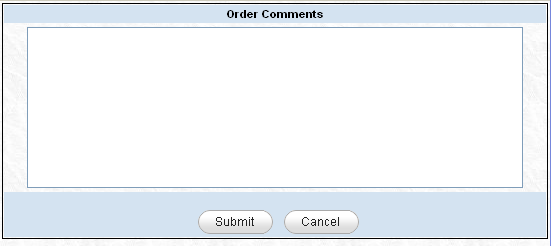
Discounts
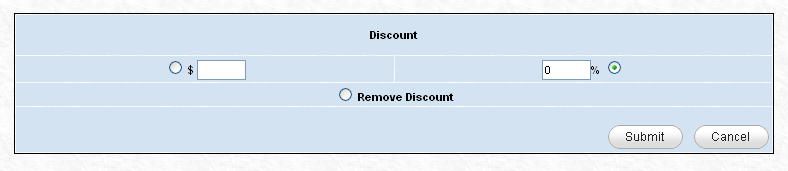
Discounts can be assigned to each order based on dollar amount or percentage. To add a discount, simply click on the discount button. The discount screen will appear and allow to to click a radio button for either percentage or dollar amount, enter the amount and click submit. To remove this discount, click the remove option and hit submit.