
| Introduction | Orders | Products | Customers | Checkout | History/Reporting |
Introduction
Most of the functions you will need have been placed in the header menu shown above. This menu will always appear at the top of the screen.
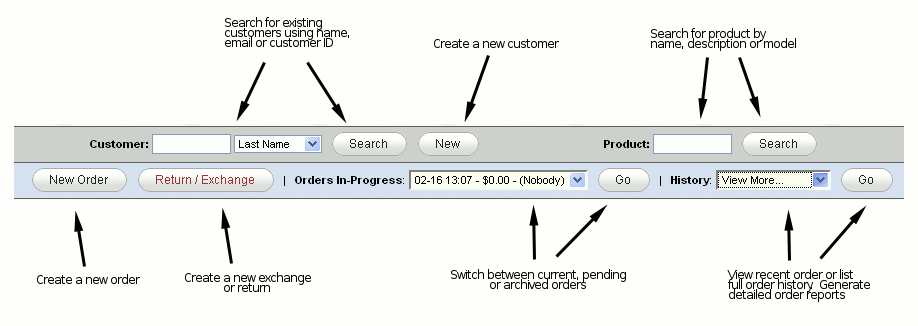
The top (gray) bar allows you to search for an existing customer, or add a new one. It also allows you to search the product database (products will be matches by model or name).
Below that is a blue bar which allows you to manage your orders. There is a button to start a new order. Clicking the button will do exactly that. It will create a new empty order.
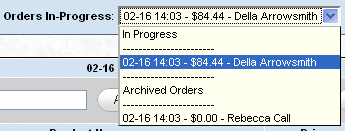 There is also a dropdown menu which includes pending orders (in case you have multiple orders open at one
time), and also archived orders (in case you need to store a pending order for an extended period of
time--or share it between terminals). Pending orders are listed under the "On This Machine" header, and
archived orders are listed under the "Archived Orders" header. Selecting one of these orders and clicking
"Go" will set it to the current order (moving the previous "Current" order to pending if one exists).
There is also a dropdown menu which includes pending orders (in case you have multiple orders open at one
time), and also archived orders (in case you need to store a pending order for an extended period of
time--or share it between terminals). Pending orders are listed under the "On This Machine" header, and
archived orders are listed under the "Archived Orders" header. Selecting one of these orders and clicking
"Go" will set it to the current order (moving the previous "Current" order to pending if one exists). Lastly, there is a "History" dropdown menu which lists recently completed orders.
If you select one of these orders, and click "Go," you will be taken to the details of that order. There are
also options at the bottom of that dropdown menu for viewing more previous orders, or for viewing
Order Reporting.
Lastly, there is a "History" dropdown menu which lists recently completed orders.
If you select one of these orders, and click "Go," you will be taken to the details of that order. There are
also options at the bottom of that dropdown menu for viewing more previous orders, or for viewing
Order Reporting.